Multiple Disks Not Recognized

Multiple Disks Not Recognized
Multiple Disks Not Recognized
2026-01-09 13:43:26 - last edited 2026-01-13 15:19:25
Model: Archer BE9300  
Hardware Version: V1
Firmware Version: 1.2.1 Build 20250813 rel.27119(5553)

I'm trying to connect two USB disks to the router via a USB hub.  I can connect the first one, and all is well, with the router assigning it a drive letter of G.  I can access this from my devices.  When I connect the second one, it takes on the drive letter of G, and the first one is nowhere to be found.  If I have a file browser on my laptop, looking at the files and folders on the first disk, clicking refresh after I connect the second disk loads the browser with the contents of the second disk.  How can I get the router to assign a unique share letter to each volume?

0
0
#1
1 Accepted Solution
Re:Multiple Disks Not Recognized-Solution
2026-01-13 15:18:30 - last edited 2026-01-13 15:19:25

Thank you, Joseph.  Your suggested solution didn't solve my problem; I already had power going to the hub, but I tried a different hub and power source.  What gave me two separate shared volumes was the procedure outlined below.  Between each step, I clicked the Refresh link in the USB Storage Status section of the router's web page.  


  1. Eject the one recognized disk and disconnect it from the hub.  At that point, the second connected disk was recognized.  
  2. Eject the second disk and disconnect it from the hub.
  3. Disconnect the hub from the router.
  4. Connect both disks to the hub.
  5. Connect the hub to the router again.


@Joseph-TP 

Recommended Solution
1
1
#3
2 Reply
Re:Multiple Disks Not Recognized
2026-01-13 06:16:31

Hello @SSCUSTER64 ,

Welcome to our community.


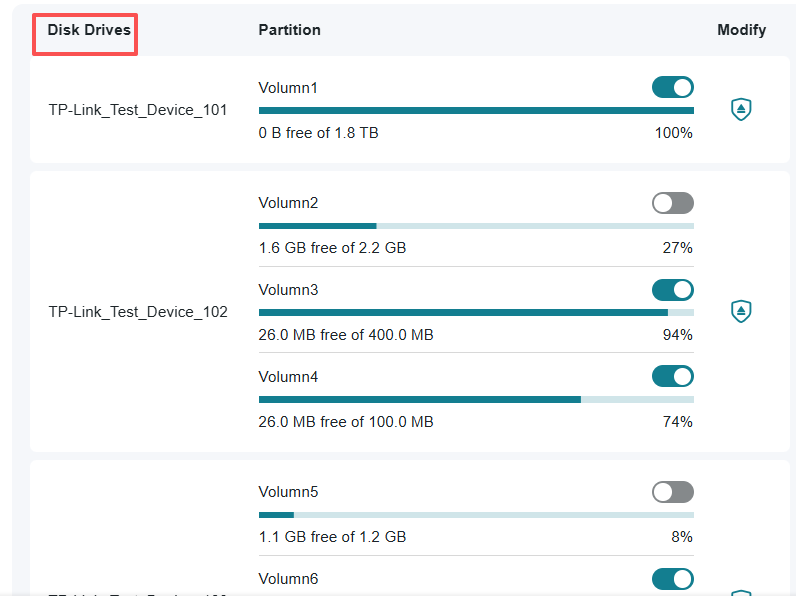
Do you have a different USB hub? Sometimes, an insufficient power supply can occur when multiple USB disks are connected simultaneously.

Please check if all USB disks can be recognized on the router and PC: 

e1f5f46fe5b2403183ffd381fd8b98e4


For troubleshooting tips, please refer to Can't access my USB drive plugged into TP-Link router


Welcome to Our Community! Get the latest posts: △New Firmware for Archer GE550/GE650 V1 Introduces AI-QoS, EasyMesh IoT Expansion, and More! △New Firmware Releases for Archer BE805 V1/BE450 V1 to Support VPN Merge, New ECO Mode, and More! More posts, please see: △ Get the Ongoing Pre-release Firmware for Wi-Fi Routers Here— Subscribe for Updates! Urgent problems with your Wi-Fi Router, Range Extender, or DSL Modem? Please reach out via private Messages or @Joesph-TP in your new thread directly. Click Or ☆Recommended Solution if the post/answer helps.
0
0
#2
Re:Multiple Disks Not Recognized-Solution
2026-01-13 15:18:30 - last edited 2026-01-13 15:19:25

Thank you, Joseph.  Your suggested solution didn't solve my problem; I already had power going to the hub, but I tried a different hub and power source.  What gave me two separate shared volumes was the procedure outlined below.  Between each step, I clicked the Refresh link in the USB Storage Status section of the router's web page.  


  1. Eject the one recognized disk and disconnect it from the hub.  At that point, the second connected disk was recognized.  
  2. Eject the second disk and disconnect it from the hub.
  3. Disconnect the hub from the router.
  4. Connect both disks to the hub.
  5. Connect the hub to the router again.


@Joseph-TP 

Recommended Solution
1
1
#3