
Early Access Unlock Full Home Wi-Fi Coverage with Deco Heatmap Open Beta [Now Closed]


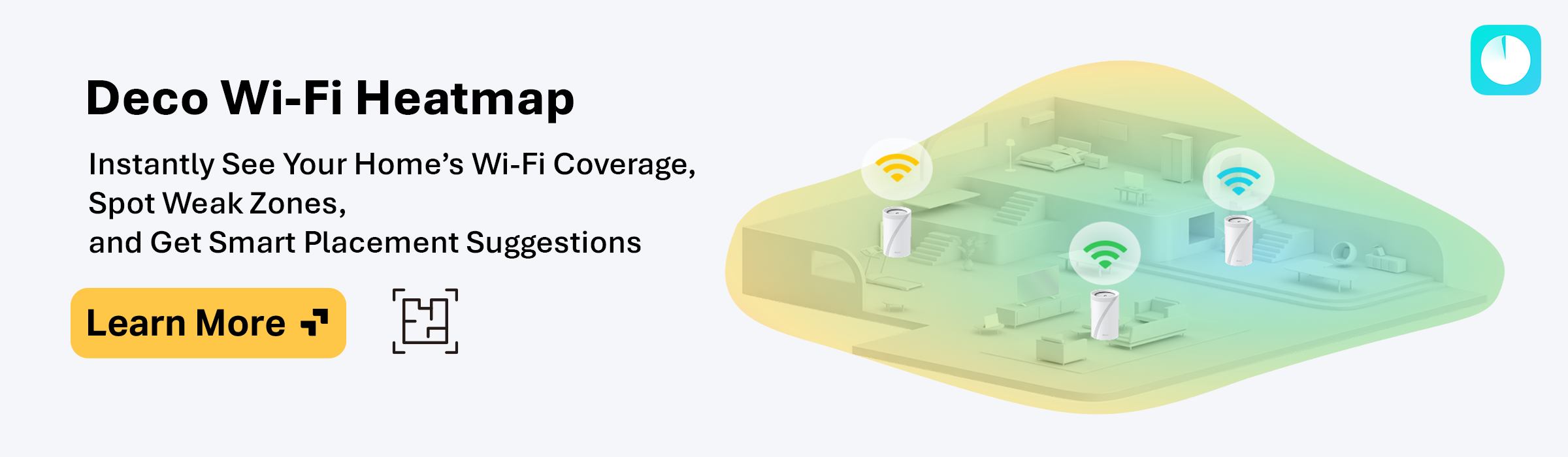
Unlock Full Home Wi-Fi Coverage with Deco Heatmap
Deco Heatmap is now available for All Deco Models via Deco App Beta!
Say goodbye to frustrating dead zones and buffering. The Deco App’s Wi-Fi Heatmap provides a clear, visual overview of your home’s wireless coverage, pinpointing exactly where your signal is strong and where it needs improvement. This straightforward tool helps you easily interpret your network’s actual coverage and make informed decisions about your Wi-Fi setup.
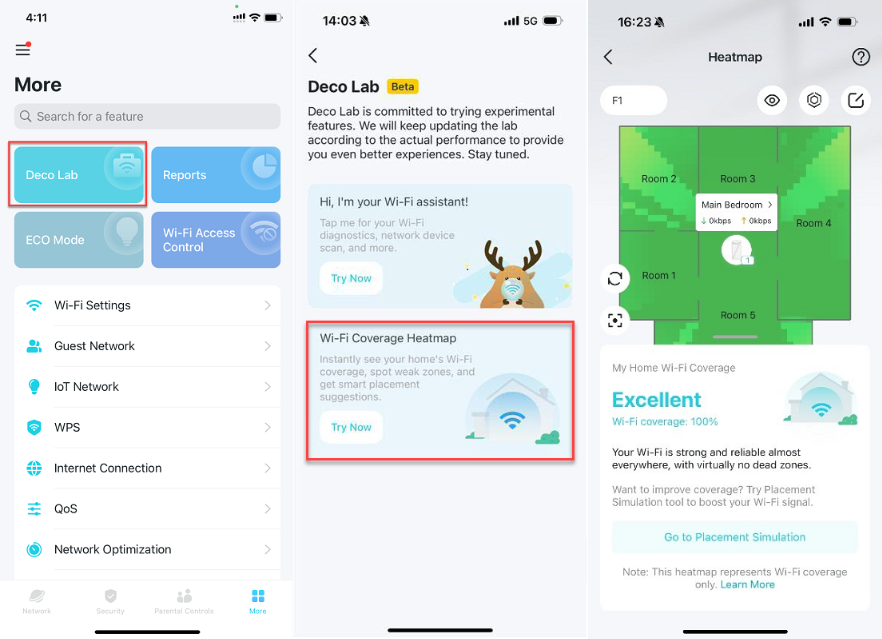
Placement Simulation:
Drag-and-drop Deco units onto your floor plan to simulate different layouts. Instantly see how moving a device affects coverage, identify interference sources (e.g., thick walls), and optimize bandwidth allocation.
Real vs. Simulated Data Comparison:
Compare AI-generated predictions with actual signal tests to validate accuracy. This dual approach captures real-world variables like furniture or neighboring networks, ensuring recommendations are actionable.
- Import & Customize Your Floor Plan: Upload a scaled floor map (hand-drawn or digital).
- Add structural details: Floors, rooms, doors, and walls for precise signal penetration analysis.
- Define Key Areas: Highlight critical zones (home office, gaming room) for targeted coverage analysis.
-
Place Deco Units: Position your Deco devices on the map. The app suggests ideal spots based on AI-driven mesh algorithms
Outdoor Deco Nodes Require an Outdoor Area
Adding Rooms for your Outdoor Areas (e.g., Backyard) isn’t just required for placing Outdoor Decos―it helps Heatmap visualize exterior Wi-Fi coverage from both your outdoor and indoor nodes!
We recommend creating a larger-than-normal backyard to see truly how far your wireless signal may reach.
Fine-Tuning Your Heatmap
Split Walls to Maximize Creative Control over Your Floor Plan
-
The Split option allows for flexible Room Shape Customization and Heatmap Accuracy.
-
You can Split Walls even when using predefined room shapes.
Tap and Hold on a Room or Wall While Moving to Disable Snapping
- No Overlapping Areas are Allowed. Make use of Wall Snapping―or bypass it―to ensure your adjacent walls are correctly aligned.
Set Key Areas Within Your Home (Favorites)
- Selecting Rooms where you frequently use and rely on stable Internet connectivity allows Heatmap to provide specific analysis for more precise device placement guidance.
 What Does Your Heatmap Mean?
-
Multi-Floor and Room Insights: Switch between floors/rooms to spot weak signals everywhere.
-
Detailed Signal Metrics: Hover over areas to see signal strength and speed metrics and the number of connected devices per mode.
-
Color Key for Quick Interpretation:

-
Green Zones = Strong Signal (Ideal for 4K Streaming).
-
Orange/Red Zones = Suboptimal Connectivity (Needs Deco Repositioning or an Extra Unit).
-
Optimize Your Home's Backhaul Using Heatmap
A strong backhaul is the foundation of a fast, stable mesh network. While Wi-Fi speeds and client devices often get the spotlight, the way your Deco nodes communicate with each other has an equally significant impact on real-world performance. With Deco Heatmap, you can optimize not only coverage, but connectivity between nodes for maximum reliability and performance across your home.
The Deco Heatmap isn’t just a tool—it’s a foundation for perfect coverage. Test today and share your feedback:
- Did it help you find a pesky dead zone?
- Did moving a Deco based on the heatmap actually improve your signal?
- How did you make use of the Split or Merge features for Walls?
- Do you find yourself making use of the Key Areas feature?
- Did Snapping work reliably and in your favor, or did you need to override it in some cases?
- What features do you feel would make Heatmap even better?
Ready to Visualize Your Home's Wi-Fi Coverage and Optimize with Confidence?
Try Out Deco Wi-Fi Heatmap using the Beta App Links Below!
Deco App Beta Download Links:
|
|
|
|
|
|
Note:
- The Beta Apps currently support English only.
How to Opt-Out of the Beta:
- Android: Please delete the Beta App and download the Official version from the Google Play Store.
- iOS: Go to Test Flight and tap “Stop Testing,” then delete the Beta App and install the Official version from the App Store.
⸻⸻
Update Log:
3/16/2026 - Updated Android APK version from 3.10.103 to 3.10.104
6/4/2026 - Open Beta for Deco Wi-Fi Heatmap closed; removed beta app links.
- Copy Link
- Subscribe
- Bookmark
- Report Inappropriate Content

Do we know if there's an update on either bundling this feature on a new release on Google Play either as an official release or for this enrolled in the Beta program?
Or at least an updated build in this thread based on the latest app version?
- Copy Link
- Report Inappropriate Content
The teams are going through the feedback gathered so far, and since the feature is still in development, they may be looking to add some of the requested features before the next release (whether official or another beta build).
Either way, as soon as we hear any updates, we'll let the community know.
- Copy Link
- Report Inappropriate Content

@Ryan We should add feature to import map from tapo smart vacuum i tried to use screenshot but it doesnt recognize.
- Copy Link
- Report Inappropriate Content
Brilliant suggestion (and tbh, one that a couple members of the Community Team also discussed, haha).
Keep the Deco Heatmap feedback and suggestions coming, if you have them! The more feedback we receive, the more comprehensive Deco Heatmap's feature development can be.
Just curious, did you try zooming in as much as reasonably possible on your Robot Vacuum's house map in the Tapo app before taking the screenshot? And did you try cropping the image so the map is the focus?
Just wondering because that's literally what I did for a blueprint lol ― imported a cropped screenshot of the map generated by my Tapo RV30 Max. Though, I did have to make some additional modifications afterward to make it more accurate, but at least it gave me a starting point haha.
- Copy Link
- Report Inappropriate Content
Since you all are still going thru feedback, when I had the heatmap feature available in the APK version, one feature that I wish I had was to be able to adjust where the different floors of my house were with respect to each other.
For example, my house has two floors, but the second floor is above only the south part of the first floor (the north part of the first floor does not have a second floor above it). So when I create the second floor in the heat map tool, it's not clear to me how wireless signals from a router on the second floor will affect first floor coverage, and vice versa. I'm not sure if the tool makes an assumption that each floor has the same center, but if there was a way to anchor parts of the walls between floors or some other way to orient the "XY" positions between floors, would help with overall accuracy.
- Copy Link
- Report Inappropriate Content
Thanks for the insightful suggestion―I can imagine the benefits of accurately aligning floors in a multi-level home's layout. Will share this feedback with the teams!
- Copy Link
- Report Inappropriate Content

- Copy Link
- Report Inappropriate Content

@fallingrock thats odd. I haven't been able to access it since I posted my question.
- Copy Link
- Report Inappropriate Content

- Copy Link
- Report Inappropriate Content
- Copy Link
- Report Inappropriate Content
Information
Helpful: 2
Views: 7732
Replies: 33
Voters 1
