
Doorbell pressed
 This thread has been locked for further replies. You can start a new thread to share your ideas or ask questions.
I want to press the doorbell and have Google say the doorbell was pressed.
Nothing else.
If I disable all the activities in the app, they shouldn't continue to trigger with Google Home.
- Copy Link
- Subscribe
- Bookmark
- Report Inappropriate Content


Hi,
On the Tapo D130, if you turn off all detection types on the Device Settings > Detection page, the doorbell camera won't send event notifications.
If you want your Google devices to make an announcement when someone presses the doorbell, you can add an automation entry in the Google Home app by following the steps below.
1. Go to the Google Home app > Automations page, tap the "+" icon at the top right corner.
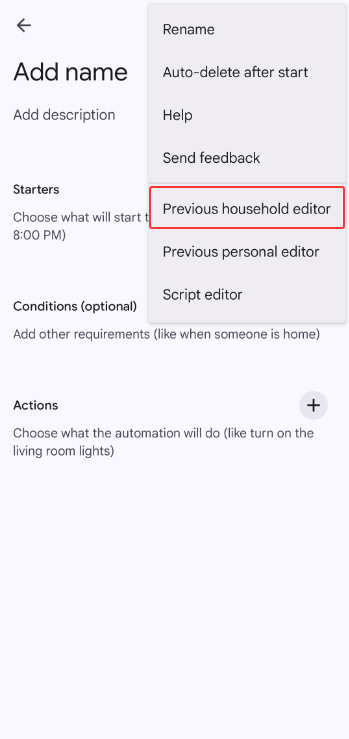
2. Tap Automation, click the "three-dots" icon at the top right corner, and go to the Previous household editor.
3. Tap Add starter > When a device does something > select Tapo D130 > Doorbell Rings
4. Tap Add action, click Communicate and announce, and configure the action settings.
5. Customize a routine name and save the settings.
Best Regards
- Copy Link
- Report Inappropriate Content
Hi,
On the Tapo D130, if you turn off all detection types on the Device Settings > Detection page, the doorbell camera won't send event notifications.
If you want your Google devices to make an announcement when someone presses the doorbell, you can add an automation entry in the Google Home app by following the steps below.
1. Go to the Google Home app > Automations page, tap the "+" icon at the top right corner.
2. Tap Automation, click the "three-dots" icon at the top right corner, and go to the Previous household editor.
3. Tap Add starter > When a device does something > select Tapo D130 > Doorbell Rings
4. Tap Add action, click Communicate and announce, and configure the action settings.
5. Customize a routine name and save the settings.
Best Regards
- Copy Link
- Report Inappropriate Content
What do you mean "previous household editor"?
The starter for Doorbell shows "Detects event" which is empty.
- Copy Link
- Report Inappropriate Content
Hi,
The "Previous household editor" is an option you can see after you tap the "three-dots" icon at the top right corner when adding an automation entry.
Best Regards
- Copy Link
- Report Inappropriate Content
Information
Helpful: 0
Views: 579
Replies: 3
Voters 0
No one has voted for it yet.