
Troubleshooting What can I do if fail to stream the Tapo camera via the RTSP/ONVIF protocol?


The Tapo wired-powered camera supports RTSP and ONVIF (Profile S) protocols, enabling compatibility with third-party NVR or NAS devices that also support RTSP/ONVIF. If you fail to stream the Tapo camera via RTSP/ONVIF, please follow the steps below to troubleshoot.
Note:
- For battery-powered cameras/doorbells, only the special models (Tapo D235/D225/TD25) support RTSP streaming when hardwired, with a jumper cable installed, and the always-on mode turned on. Other models (such as Tapo C410/C420/C425/D230) do not support RTSP streaming due to battery and electronic design limitations.
- For dual-lens cameras, when connected to a PC/NAS/NVR via ONVIF, only the wide-angle lens stream is available.
Step 1. Check Your Camera Settings
1) Configuration: Ensure that the camera settings are correctly configured. The instructions below introduce some basic parameters that need to be configured on the camera.
How to view Tapo camera on PC/NAS/NVR through RTSP/Onvif Protocol
Note: Try to change the camera account(username and password) if they include special characters.
2) Subscription and Storage: Check whether the camera has subscribed to the Tapo Care service and if a microSD card is inserted. If both are present, the RTSP/ONVIF stream can't be established.
You may remove the microSD card from the camera to establish the RTSP/ONVIF connection.

Step 2. Review Your Network Diagram
The typical network diagram for streaming a camera via the RTSP/ONVIF protocol on a PC/NAS/NVR locally is shown below. Then you can refer to these instructions to establish the RTSP/ONVIF connection.

If you are streaming the camera remotely, more configurations are required on your home network. For detailed instructions, please refer to the article below.
How to View Your Tapo Camera Remotely via RTSP/ONVIF
Step 3. Test with Different Third-Party Applications
You can refer to the instructions below to establish the RTSP/ONVIF connection with the camera using Agent DVR or VLC, then test if you can stream the camera.
How to view Tapo camera on PC/NAS/NVR through RTSP/ONVIF Protocol?
Step 4. Pay attention to the number of devices that are streaming the camera.
The Tapo camera allows for up to 2 main streams (stream1) and 2 sub-streams (stream2) to be viewed simultaneously. Each RTSP/ONVIF connection occupies one stream. If all 4 streams are in use, you cannot establish a new connection.
You can try the following steps to troubleshoot interference from the device count limit.
1) Restart the camera to disconnect the device from viewing the camera.
2) Switch between the URL of the main stream (stream1) and the sub-stream (stream2) when establishing the RTSP/ONVIF connection.
3) Modify the Camera Account on the camera's Device Settings > Advanced Settings > Camera Account page to disconnect the device from viewing the camera.
Note: The Tapo Care service occupies one main stream, and viewing the camera's live feed through the Tapo app will occupy either a main or a sub-stream.
Next Steps If RTSP/ONVIF Streaming Cannot Be Established
You can reply to this thread or start a new thread with the following information for further assistance.
1. Describe the encountered phenomenon on the third-party apps. For example:
1) The third-party apps you are using (e.g., Agent DVR, VLC).
2) The URL used to stream the camera, such as rtsp://IP Address/stream1(For high-quality stream1).
3) The error message that appears if there is one.
2. List the results of the above four troubleshooting steps.
3. Provide the camera's model number, firmware, and hardware version.
QA related to the RTSP/ONVIF connection
Q1:What ports are used by the Tapo camera for RTSP/ONVIF?
A1: The Tapo camera uses the following ports for RTSP/ONVIF: ONVIF Service Port: 2020 and RTSP Service Port: 554.
Q2: Does the Tapo Camera support 2-way audio when connected via RTSP/ONVIF?
A2: The ONVIF standard includes multiple profiles, and the Tapo Camera only supports Profile S. This profile does not include 2-way audio. Profile S only covers basic functionalities such as video/audio streaming, network configuration, event handling, and PTZ (pan-tilt-zoom) control.
Q3: What are the Tapo dual-lens cameras' (e.g., Tapo C246D, C840) RTSP URLs for different lenses?
A3: You can access different lenses by switching URLs as shown below.
Wide-angle lens (high quality): rtsp://IP Address/stream1 (or rtsp://username:password@IPAddress/stream1)
Wide-angle lens (low quality): rtsp://IP Address/stream2 (or rtsp://username:password@IPAddress/stream2)
Telephoto Lens (High Quality): rtsp://IP Address/stream6 (or rtsp://username:password@IPAddress/stream6)
Telephoto Lens (Low Quality): rtsp://IP Address/stream7 (or rtsp://username:password@IPAddress/stream7)
Note: Only the wide-angle lens is accessible via the ONVIF protocol.
- Copy Link
- Subscribe
- Bookmark
- Report Inappropriate Content

- Copy Link
- Report Inappropriate Content
Hi,
You can refer to the instructions below to view the Tapo camera on PC/NAS/NVR through RTSP/Onvif protocol.
How to view Tapo camera on PC/NAS/NVR through RTSP/Onvif Protocol
Best Regards
- Copy Link
- Report Inappropriate Content

C260 works fine on Android app
Trying to use VLC to monitor stream from C260 camera on WX computer
Local LAN connection (C260 via wifi on same local subnet as Windows 10 computer)
Using latest version of VLC
No SD card in unit
No cloud connectioin
 1
1
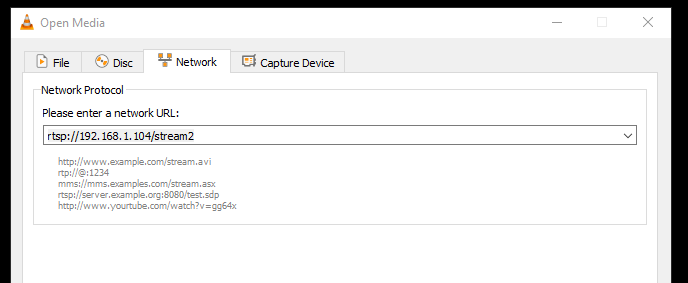
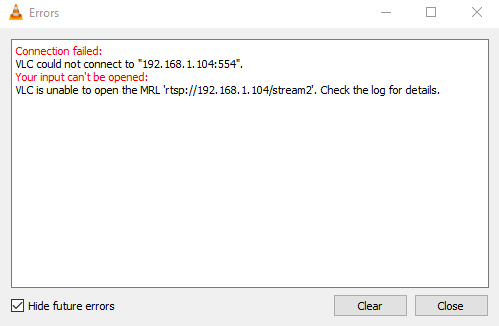
C260 does not respond
Any ideas?
- Copy Link
- Report Inappropriate Content
Hi,
1. Please ensure you have enabled Camera Account and set the username & password on the camera's Device Settings > Advanced Settings > Camera Account page.
2. On your Windows 10 computer, please check if you can successfully ping the camera's IP address: How to use the Ping command
3. When you establish the RTSP connection, please ensure no other devices stream the camera's live feed. You can reboot the camera for a try.
Best Regards
- Copy Link
- Report Inappropriate Content
Information
Helpful: 0
Views: 105517
Replies: 104
Voters 0
No one has voted for it yet.