C125 lost recording and cloud

C125 lost recording and cloud

C125 lost recording and cloud
Saturday
Model: Tapo C125  
Hardware Version: V1
Firmware Version: Version:1.4.2 Build 260302 Rel.15802n

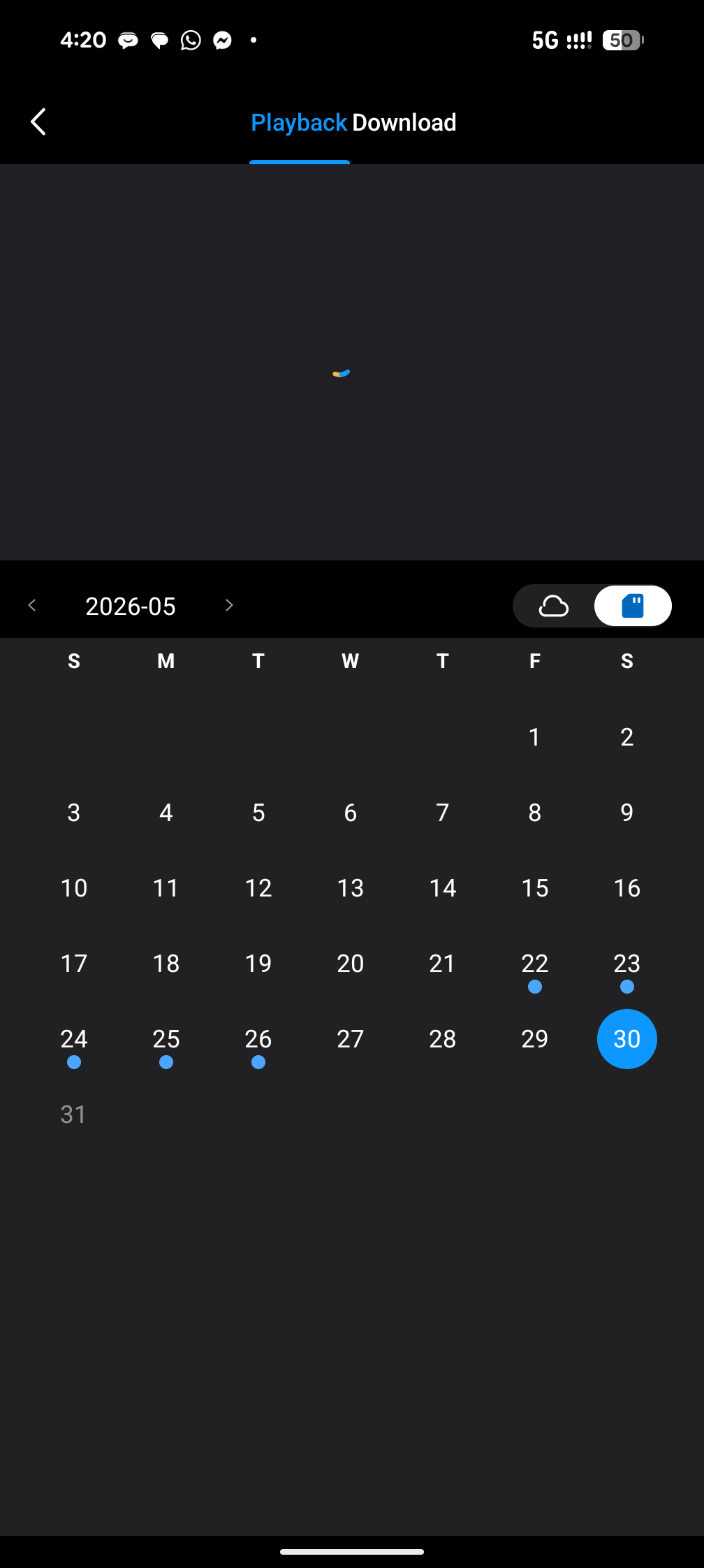
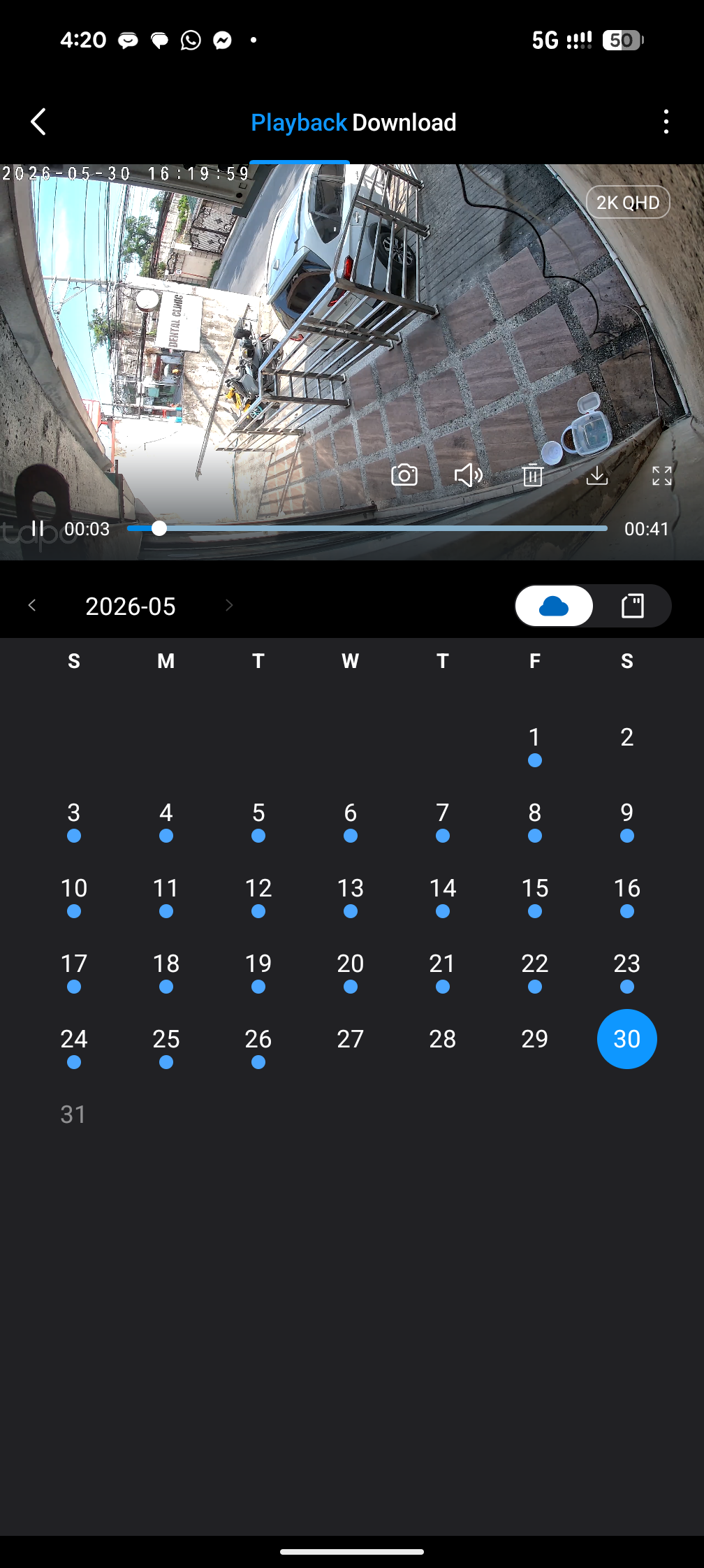
A couple of my tapo devices lost recording from May 27-29 both SDcard and Cloud. The cctvs were working fine on those days. I am subscribed to Tapo care and still have 100+ days on my subscription. What seems to be the problem?


  0      
0
#1
Options
3 Reply
Re:C125 lost recording and cloud
Monday

  @KwekSnoop 

Hi,

Based on your screenshot, it looks like you are viewing the SD card playback, rather than the cloud playback. Please tap the cloud icon to switch to Cloud Video and check there instead.


If you are encountering any recording issues, please review the troubleshooting steps below:

   1. Ensure both the camera and Tapo App firmware are up-to-date.

    2. Verify if the camera is added to the Tapo Care plan: How to add new cameras to my Tapo Care plan

    3. Enable detection and increase sensitivity on the Tapo APP > Device Settings > Detection page.

    4. Turn on the camera alarm and walk in front of the camera to confirm detection works and triggers the alarm.

    5. Confirm the camera is connected to the internet/cloud (solid green LED, accessible via mobile data).

    6. Improve network quality by moving the camera closer to the router.


Refer to this article for more troubleshooting: Troubleshooting for cloud video recordings of Tapo Camera


 If the problem persists, contact our customer service team and provide the results of the above troubleshooting steps.


Best Regards,

  0  
0
#2
Options
Re:C125 lost recording and cloud
Monday

  @Hilbert-TP like what ive posted, it is both SD card and Cloud that has no recordings. The device was on all the time during those 3 days of no recordings.

  0  
0
#3
Options
Re:C125 lost recording and cloud
Yesterday

  @KwekSnoop 

Hi,


Please check whether the APP sent any “motion detected” notifications from the camera during these three days.

If you notice any abnormal situation, we recommend contacting our Support team for further investigation. When reaching out by email, please provide the following information to help us diagnose the issue more efficiently:

  1. Screenshots of Detection Settings
  2. Screenshots of Recording Settings
  3. Screenshot of the APP Notification page
  4. Exact time when the issue occurred (please be as specific as possible)
  5. Device MAC address

This information will help the support analyze the problem more effectively and provide a solution.


  0  
0
#4
Options