
Troubleshooting Troubleshooting for Tapo Camera's Privacy Mode Automatic Activation


Tapo cameras are essential for home security, providing continuous monitoring. The Privacy Mode feature is designed to protect user privacy by disabling live streaming and recording in specific scenarios. However, if the camera automatically enters Privacy Mode, it may disrupt regular use.
This guide outlines potential reasons for Tapo cameras activating Privacy Mode automatically, helping you quickly identify why your camera enters Privacy Mode, ensuring the cameras operate correctly, and safeguarding home security.
Note: Before troubleshooting, ensure your camera's firmware and Tapo app are updated to the latest versions.
Settings on the Tapo cameras that may trigger Privacy Mode automatic activation
1. Automation Entries Configured in the Tapo App
- Navigate to the Tapo app > Smart tab > Automation page. Check if any automation entries are turning on the camera's Privacy Mode.
- If found, consider disabling or deleting these automation entries to prevent the automatic activation of Privacy Mode.
Here are the instructions to edit Automation entries: How to create Smart Action (Automation or Shortcut) on Tapo app
2. Home/Away Mode Settings in the Tapo App
- On the Tapo app, go to the Cameras tab, and review the Home and Away Mode settings.
- Check if your camera is included in these settings. If so, tap on the camera to verify if Privacy Mode is enabled. If enabled, switching to Home Mode or Away Mode from the Cameras tab may apply the preset configuration, which activates Privacy Mode.
- To avoid this, consider removing your camera from Home/Away Mode or ensuring your camera's Privacy Mode is disabled in Home/Away Mode settings.
Here are the instructions to edit Home or Away Mode: How to edit Home and Away Mode for Tapo Cameras on the Tapo app
3. Auto Privacy Mode Feature
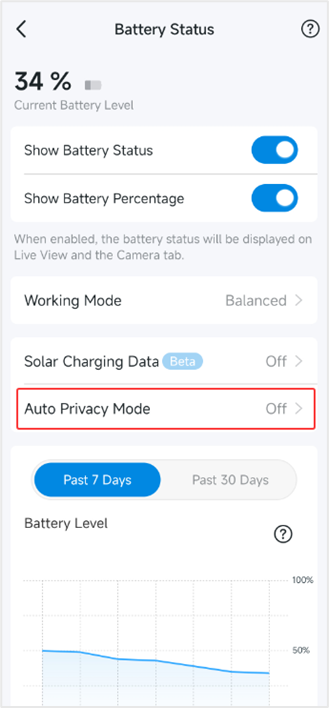
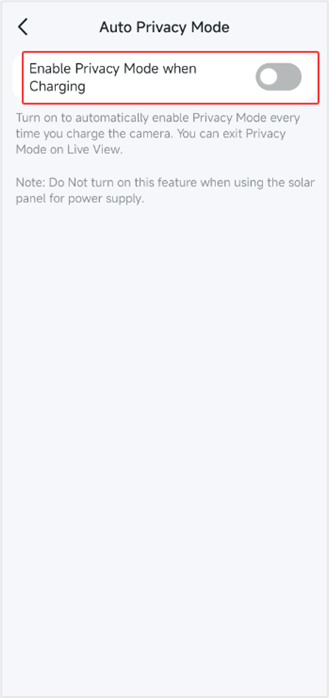
- Some Tapo battery-powered cameras have an Auto Privacy Mode feature in the Tapo app > Camera Device Settings > Battery Status page. If this feature is enabled, the camera will automatically enter Privacy Mode when charging.
- If your battery-powered camera activates Privacy Mode during charging, try disabling this feature.
Note: Do not enable this feature when using a solar panel for power supply.
4. Sharing TP-Link Account with Others
- If others have your TP-Link account, they can log in to the Tapo app using it and unintentionally toggle Privacy Mode without your knowledge.
- To avoid this, change your account password and refrain from sharing it with others. Then, check if Privacy Mode continues to activate automatically.
Here are the instructions to change the password of TP-Link account: What can I do if I forget my password of the cloud account?
5. Accidental Press of the Physical Privacy Button
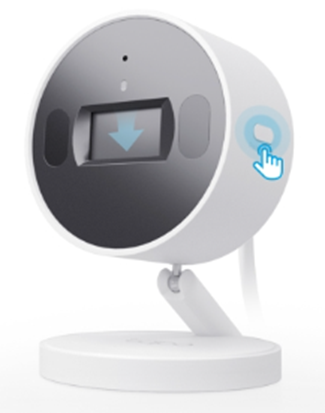
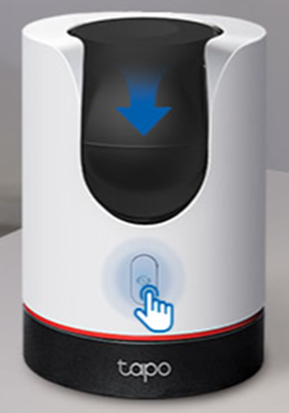
- Some Tapo camera models (e.g., C125 and C225) feature a physical Privacy button. Accidental pressing of this button can lead to the camera lens being blocked or hidden, activating Privacy Mode.
- If the camera's privacy mode is automatically enabled, it is recommended to consider whether the physical privacy button was accidentally pressed.
Next Steps If the Reported Phenomenon Persists
If you have gone through the troubleshooting steps and your camera still automatically activates Privacy Mode, we recommend replying to this thread or contacting our technical support team with the following information for further assistance.
1. The camera's model number, hardware, and firmware version.
2. A brief description of the phenomenon you experienced, and the troubleshooting you did.
3. Collect the camera log and send it to us: How to get the log of Tapo Camera (You can send the camera log to our technical support team via email and send us the corresponding ticket ID)
More Articles:
What should I do if my Tapo camera triggers false detection?
Smart Home: Introduction to Common Smart Action Scenarios for Tapo Cameras
Enhance Your Tapo App Experience: Introduction to Several Practical Features