
Knowledge Base Flexible Configuration: Setting up for Your Tapo Video Doorbell Camera’s Doorbell Feature


As smart home technology continues to evolve, video doorbell cameras have become an essential part of home security systems. In addition to providing high-definition video monitoring, the doorbell settings of the Tapo Video Doorbell Camera play a crucial role. These settings not only alert you when visitors arrive but also enhance your home’s overall security and convenience. This article will explore the ringtone configurations for the Tapo Video Doorbell Camera, offer tips for various usage scenarios, and address common issues to help users maximize the benefits of their video doorbell camera and its associated devices.
Q1. How to Set the Video Doorbell Camera's Ringtone
A1. To set the ringtone for your Tapo Video Doorbell Camera:
- Open the Tapo app.
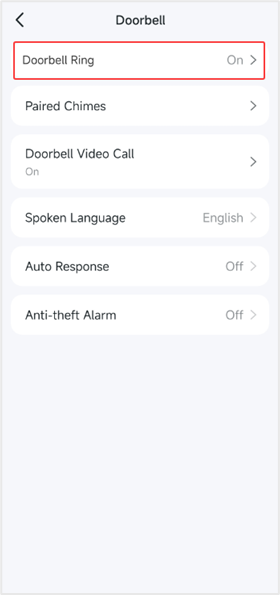
- Navigate to the camera’s Device Settings > Doorbell > Doorbell Ring page.
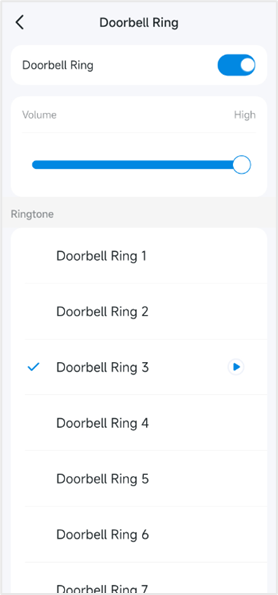
- Turn on the Doorbell Ring feature, adjust the ring volume, and choose a ringtone from the available options.
Q2. How to Add a Chime for Your Tapo Video Doorbell Camera
A2. To add a chime:
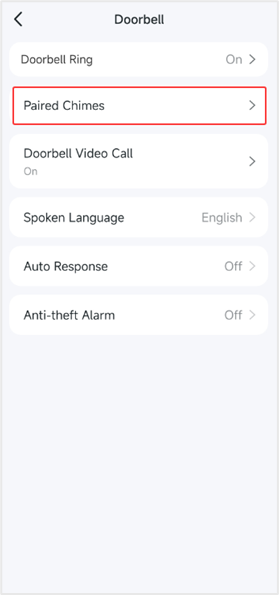
- In the Tapo app, go to the video doorbell camera’s Device Settings > Doorbell > Paired Chime page.
- Follow the instructions in the Tapo app to add a chime or add a Tapo hub as a chime.
- Additionally, you can also add an Alexa Echo or Google Assistant Speaker/Display as a chime.
Here are the detailed instructions: How to add another chime for the Tapo Doorbell
Note:
- Unlike traditional chimes, the Tapo chime requires Wi-Fi to function, and it supports local or remote pairing with the Tapo video doorbell camera. This allows you to install the Tapo chime anywhere with Wi-Fi and internet access.
- Currently, we have Tapo Hub H100, H200, and H500, which can work as a chime, with more models expected in the future.
Q3. How to Set the Ringtone for Paired Chimes
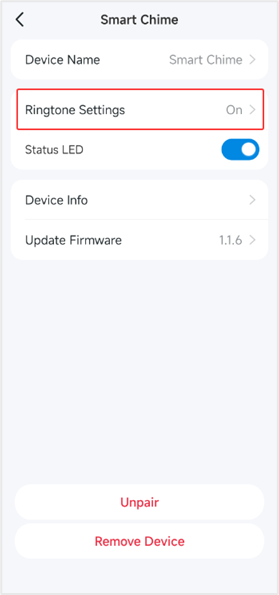
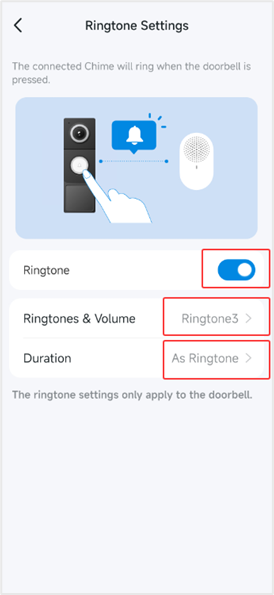
A3. To customize the ringtone for paired chimes:
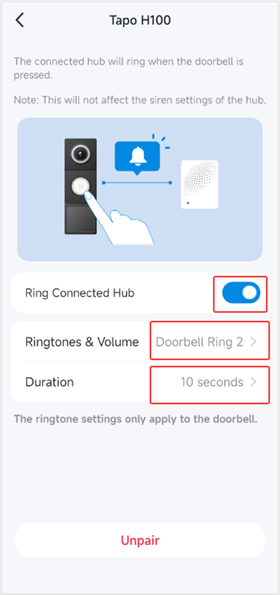
- Open the Tapo app and go to the video doorbell camera’s Device Settings > Doorbell > Paired Chimes page.
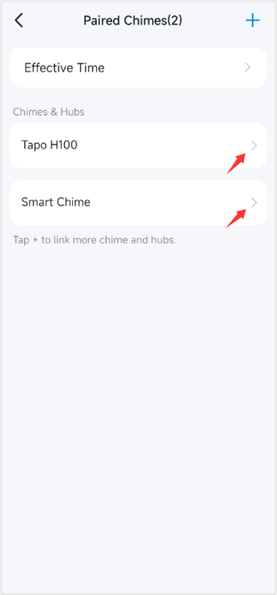
- Tap the chime’s name and access Ringtone Settings. You can enable/disable the ringtone, set the ringtone, volume, and duration.
- For the paired hub, tap its name to configure the ringtone settings similarly.
Q4. If I have an existing doorbell chime that is not a TP-Link device, will it ring when someone presses the Tapo video doorbell camera?
A4. Not all Tapo video doorbell cameras support working with an existing chime after wiring to the pre-existing doorbell system wiring. The following instructions will help you find the answer and explain why.
Can the Tapo Video Doorbell Camera work with my existing Chime?
Q5. Can I use a Kasa Chime with a Tapo Video Doorbell Camera, or vice versa?
A5. The Kasa chime that comes with the Kasa video doorbell camera cannot be used with the Tapo video doorbell camera, and vice versa.
Q6. If I have a large house with two Tapo video doorbell cameras installed at the front and back doors, and different Tapo chimes/hubs placed on different floors, can the chimes/hubs ring when someone presses either video doorbell camera?
A6. The Tapo video doorbell camera and chime/hub can realize a many-to-many configuration under the same TP-Link account. In the Device Settings for each camera, navigate to Doorbell > Paired Chimes and add all chimes and hubs. This setup allows all paired chimes and hubs to ring when either video doorbell camera is pressed.
Here are the instructions to add chimes and hubs to the Tapo video doorbell camera: How to add another chime for the Tapo Doorbell
Q7. If I have two Tapo video doorbell cameras installed at the front and back doors and a Tapo hub installed indoors, can the hub ring different ringtones when someone presses either doorbell?
A7. To assign different ringtones to the hub when either of your two Tapo video doorbell cameras is pressed:
- Use the Automation feature in the Tapo app.
- Set one video doorbell camera's "Doorbell is Pressed" as the trigger, and assign a specific ringtone to the hub as the action.
- Repeat the above step for the other video doorbell camera with a different ringtone.
Refer to the following instructions to learn about how to create Automation: How to create Smart Action (Automation or Shortcut) on Tapo app
Note:
- The hub can't be added to the Paired Chimes page for the two video doorbell cameras.
- The Tapo chime can't achieve this use case.
Q8. Can the paired chime/hub rings when my Tapo video doorbell camera is offline?
A8. When the Tapo video doorbell camera and the paired chime/hub are online, even if they are on different Wi-Fi networks, the chime/hub can ring when someone presses the camera.
When the Tapo video doorbell camera is offline, only when the paired chime/hub and the camera are connected to the same Wi-Fi network will the chime/hub ring when someone presses the camera.
Q9. How to troubleshoot if the paired chime/hub is not ringing as expected, such as not ringing at all, or the ringtone is not as expected?
A9. You can try the following steps:
1. Confirm that the chime or hub is added in the Tapo app > camera's Device Settings > Doorbell > Paired Chimes page.
2. Check the ringtone settings for the paired chime/hub.
3. Ensure that the Tapo video doorbell camera, Chime, Hub, and Tapo app are up to date.
4. Contact our technical support team or start a new thread here with the following information for assistance:
- A description of the phenomenon encountered.
- A description of the troubleshooting steps already taken and the results.
More Articles:
Introduction to Smart Dual Tracking on Tapo Outdoor Dual-Lens Camera
Troubleshooting for Tapo Camera's Privacy Mode Automatic Activation
Manual Alarm: Activate the Tapo Camera Alarm with One Tap